


Microsoft SwiftKey AI Keyboard
4.3225.23K Reviews
App Specs
- Version
- 9.13.14.5
- Updated On
- License
- Free
- Downloads
- 1,000,000,000+
- Developer
- SwiftKey
- Categories
- Personalization
- Platform
- Android, iOS
Screenshots
 Analysis by AppCompare
Before settling on a new keyboard, I’d think about what I actually want to improve: fewer corrections, faster replies, or a layout that feels more like mine. Microsoft SwiftKey AI Keyboard is aimed at people who type across lots of everyday apps and want the keyboard to adapt to their habits, rather than people looking for a completely different way to use their phone. That distinction matters: it works best as a familiar keyboard that gradually gets more useful, not as a dramatic change on day one.
What to expect from a keyboard that learns
SwiftKey is a free personalization app from SwiftKey, and its appeal is practical rather than flashy. It combines word suggestions and autocorrection with options for languages, appearance, and expressive typing. Its current version is 9.12.29.12, and it runs on Android 8.0 or later. The app is rated for Everyone; its 4.3 average comes from around 4.6 million ratings, with roughly 225,000 written reviews and over 1 billion installs. Those figures suggest it is a familiar choice, but they do not mean its predictions will suit every person or writing style.
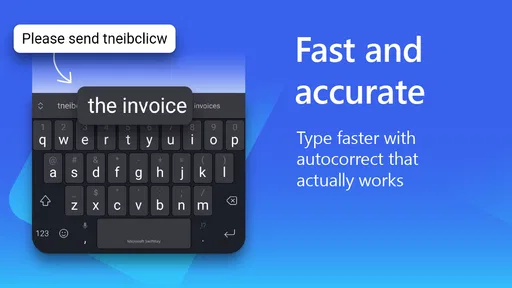
The main thing I would expect is a keyboard that becomes more useful through ordinary repetition. If I often type the same names, greetings, or short phrases, suggestions can become more relevant over time. The trade-off is that early predictions may feel generic, and autocorrection can still misunderstand unusual names, slang, or a sentence that changes direction halfway through. I would treat suggested text as a shortcut to review, not as a promise that every message is ready to send.
Guides and Analysis on Microsoft SwiftKey AI Keyboard
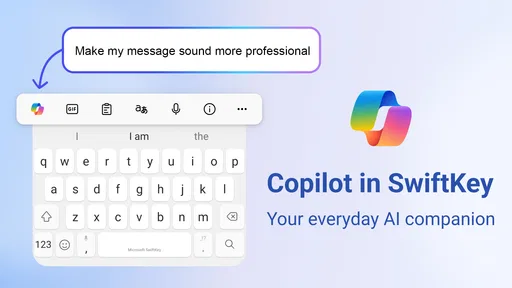
The Copilot element is part of the app’s AI-powered positioning, but I would not install it expecting an entirely new way to communicate. The everyday value remains the keyboard itself: typing, correcting, and choosing how messages look. If you want a keyboard that gets out of your way while learning your preferences, that is a more realistic expectation than expecting it to write every message for you.
Getting through setup without second-guessing
After installing, follow the setup prompts to enable SwiftKey as a keyboard and select it for typing. Android’s keyboard setup can involve system settings as well as the app, so take a moment to check which keyboard is active if the layout does not appear in a text field. Then choose the languages you actually use and a theme you can read comfortably. You can revisit those choices later; there is no need to make the perfect selection before sending your first message.
If you move between languages, set up the ones you use regularly rather than adding every language you might occasionally encounter. That keeps the suggestions more relevant and makes it easier to judge whether the keyboard is following the language you intend. In a mixed-language chat, try a short sentence with the words you naturally switch between. If a correction feels wrong, tap the text and fix it instead of accepting the suggestion just because it is displayed.
One useful first test is a low-stakes message to someone you know: type a greeting, a familiar name, and a sentence you commonly use. Notice whether the suggestion strip offers words you would actually choose and whether the correction helps or interrupts you. This is a better way to assess the keyboard than typing a single random phrase, because SwiftKey’s personalization is tied to the patterns it sees in your regular use.
Worth Reading Before You Choose

Basketball Stars: Multiplayer Is Fast, but Can It Recover When Matches Go Wrong?

WEBTOON Turns Phone Updates Into a Better Reading Routine

Link to Windows Runs on Shared Habits, Not Social Feeds

How Alibaba.com Dominates the B2B Marketplace

Metro's Quiet Rise: Redefining Mobile Communication

Harnessing Ecosystem Power with Phone Tracker by Number
Make the first useful message a small experiment
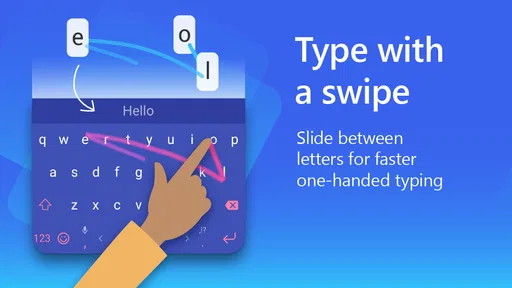
For a realistic first success, imagine replying while walking between errands: you have one hand free, want to confirm a meeting time, and do not want to peck at each letter. A short message is a good place to try swipe typing, then glance over the result before sending. Swipe input can reduce tapping, but it is not automatically faster for everyone; unfamiliar names and short, ambiguous words may still need correction. I would use it for ordinary phrases and switch back to tapping whenever the path produces a strange guess.
After a few days, look for the small improvements that matter in your routine. Maybe the keyboard starts offering a name you type often, or the words you tend to use together appear sooner. That is more valuable than judging it by one impressive prediction. If it keeps correcting a word you deliberately use, undo the correction when it happens and continue typing naturally; forcing yourself to write around the keyboard is a sign that its help is not helping.
Where SwiftKey fits among keyboard choices
Compared with the keyboard that comes with a phone, SwiftKey is worth trying if you want more control over themes, language handling, and personalized suggestions in one place. A built-in keyboard may be the better choice if it already feels accurate and you prefer not to change a system-level habit. Switching keyboards can also take time: your muscle memory, punctuation habits, and preferred layout may not carry over exactly, so give yourself a few ordinary conversations before deciding.
Against other third-party keyboards, the choice often comes down to what you value most. SwiftKey makes sense if you want an adaptive typing experience with visual customization and GIF or sticker options. If your priority is a stripped-back layout, or you dislike suggestion bars and predictive corrections, a simpler keyboard may feel calmer. I would not choose a keyboard solely because it advertises AI; the practical test is whether its corrections and layout suit the way you write.
The Magic Behind SwiftKey
At its core, Microsoft SwiftKey AI Keyboard is all about personalization. The app learns from your typing habits, adapting its predictions and autocorrections to fit your unique style. It's like having a personal assistant who knows exactly what you’re about to say. The more you use it, the more intuitive it becomes, which is honestly a game-changer.
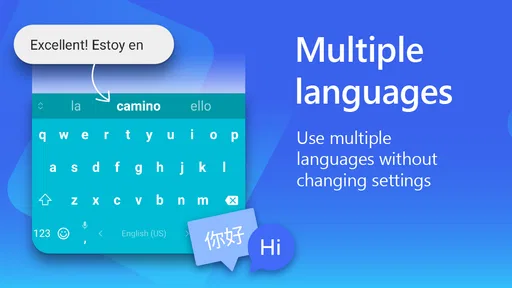
One of the standout features of SwiftKey is its ability to support multiple languages, allowing you to switch seamlessly between them. For those of us who like to sprinkle our conversations with a bit of French or Spanish, this is a real boon. It recognizes the context in which you type, making it easy to communicate in different languages without the hassle of changing settings constantly.
Features That Make It Shine
So, what sets SwiftKey apart from the plethora of other keyboard apps out there? Let’s dive into some of its coolest features:
- AI-Powered Predictions: SwiftKey uses advanced AI to predict your next word, saving you precious time. It’s almost like it reads your mind!
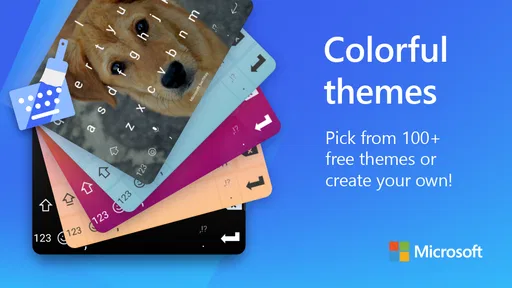
- Customizable Themes: Who doesn’t love a little customization? With SwiftKey, you can choose from a variety of themes or even create your own. It’s all about making your keyboard as unique as you are.
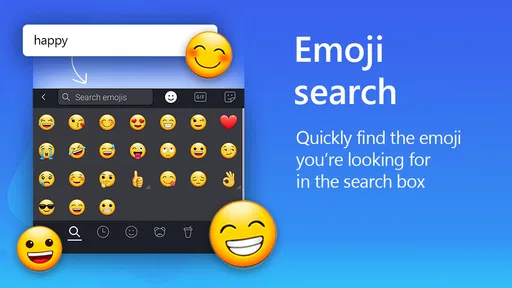
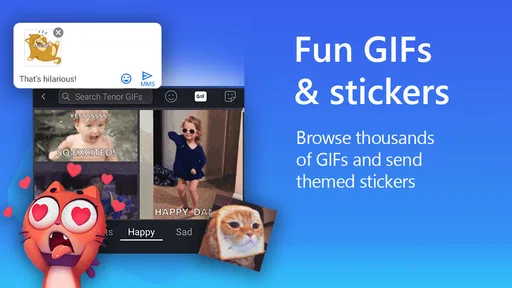
- Emoji and GIF Suggestions: As someone who loves a good meme or emoji, this feature is a godsend. SwiftKey suggests the perfect emoji or GIF based on your conversation, adding a fun twist to your chats.
- Swipe Typing: If you’re a fan of swiping more than tapping, you’ll appreciate SwiftKey’s swipe typing feature. It’s fast, efficient, and oddly satisfying.
Getting Started with SwiftKey
Installation is a breeze and only takes a few minutes. Once you download the app, setting it up is straightforward. You’ll be guided through a series of prompts to personalize your keyboard, like choosing your preferred languages and themes. Trust me, even if you’re not tech-savvy, you’ll find it easy to navigate.
After setup, the app starts learning from your typing patterns. It picks up on your frequently used words, phrases, and emojis, making your future typing sessions smoother. It’s like having a keyboard that grows organically with you.
Reading suggestions without letting them take over
A suggestion strip is most helpful when I treat it as an editing aid. I might type the beginning of a sentence, choose a sensible next word, and keep moving; I would not tap suggestions mechanically just to make the message shorter. For a longer email, I prefer to type in my normal rhythm and reread the whole message before sending. A keyboard can speed up composition, but it cannot check whether the tone is appropriate or whether I left out an important detail.
There is also a useful difference between a prediction and an instruction. If SwiftKey offers a word that changes what I mean, I ignore it. If autocorrection quietly changes a name or an informal spelling, I correct it immediately. This small habit helps me keep control and gives the keyboard a clearer signal about how I write. It is especially worthwhile when a message includes a person’s name, an address, or a time that would be awkward to get wrong.
Personalization that is useful, and where it can miss
Typing habits are not always consistent. I may write casually to friends, use a more formal tone at work, and switch languages in family messages. That variety is precisely where predictions can be convenient, but it can also make a suggestion feel out of place. I would check the actual sentence rather than assume the keyboard has understood the audience. For sensitive or important messages, I still proofread carefully; the keyboard’s confidence is not a substitute for my own.
Visual customization is more than decoration if a theme makes the keys easier for me to distinguish. I would choose readability over a busy appearance, particularly if I type outdoors or in a hurry. GIFs, stickers, and emoji suggestions are enjoyable when the conversation calls for them, but they are optional extras. If I mainly send plain work messages, I can ignore those tools and keep the keyboard focused on text.
When it may be the wrong fit
SwiftKey is a good candidate for people who write frequently on their phones, switch between languages, or enjoy tuning the look and feel of a keyboard. It is also a reasonable experiment for someone frustrated by repetitive typing and willing to spend a little time correcting early mistakes. The app is free, so trying it does not require a purchase, but changing keyboards still has a learning cost: for a while, familiar shortcuts and typing habits may feel less automatic.
I would skip it if the current keyboard already works well and I do not want to adjust a system setting or retrain my fingers. I would also choose a simpler option if I find predictive text distracting, want the fewest visual extras, or prefer not to have a keyboard adapt to my habits. Those are not flaws that can be fixed by choosing a brighter theme; they are preferences about how I want to type.
Small checks that make daily use smoother
If suggestions seem off, first check that the keyboard is using the languages you actually type in. Then give it ordinary, varied use rather than trying to teach it with a string of artificial test phrases. When a correction changes the meaning, restore the word and continue; when the keyboard gets a familiar phrase right, accept it if it saves effort. Over time, this gives me a fairer sense of whether its assistance is genuinely useful.
For a quick reply, I might use a suggested word or swipe a familiar phrase. For a longer note, I would type in my normal style, use corrections selectively, and read the finished text once. For a playful chat, I can browse the emoji, GIF, or sticker options without making them part of every message. Having those different workflows is more practical than expecting one feature to improve every kind of typing.
One question people often have is whether they need to commit to SwiftKey immediately. I would not. Try it for everyday messages, keep an eye on corrections, and decide after you have used it in the situations that matter to you. If you prefer the old keyboard, switching back is a reasonable choice; if the predictions become helpful, keep it and refine the language and theme settings as your habits change.
Why You Might Love It
If you’re someone who values efficiency and personalization, Microsoft SwiftKey AI Keyboard is a must-try. Its ability to predict text based on your history is nothing short of impressive. Plus, the customization options mean you can tailor it to suit your personal style, making typing not just easier but more enjoyable.
Beyond just efficiency, the app offers a fun element with its emoji and GIF suggestions. It’s those little touches that make conversations more engaging and lively. And let’s not forget the convenience of swipe typing, which is perfect for one-handed use when you’re on the go.
A sensible way to decide
I would give the keyboard a fair trial across several kinds of writing: a quick reply, a longer message, and a conversation that uses another language if that is part of my routine. That helps separate a genuinely helpful suggestion from a lucky guess. If the keyboard makes common tasks less fiddly without causing extra corrections, it has earned a place on my phone. If I spend more time undoing its choices than typing, I would go back to the option that feels natural.
For someone new to keyboard apps, the reassuring part is that there is no special technique required to begin. Install it, enable it in the system keyboard settings, choose the languages and appearance that suit you, then send a normal message. The first meaningful success may simply be finishing a familiar reply with fewer taps. That is a modest result, but it is the kind of improvement I would actually notice throughout the day.
Final Thoughts
At the end of the day, Microsoft SwiftKey AI Keyboard is more than just a keyboard app; it’s a tool that enhances your everyday communication. Whether you’re sending quick texts, crafting long emails, or just browsing social media, SwiftKey adds a touch of magic to your typing experience.
So, if you haven’t tried it yet, give it a whirl. It just might change the way you think about typing on your device. Happy typing!
Pros
- Highly customizable themes and layouts.
- Accurate autocorrect and predictions.
- Seamless bilingual typing support.
- Integration with Microsoft services.
- Efficient gesture typing feature.
Cons
- Can consume considerable battery life.
- Occasional lag on low-end devices.
- Some features require internet access.
- Limited customization for prediction bar.
- Might be overwhelming for new users.
FAQs for Microsoft SwiftKey AI Keyboard
What features does Microsoft SwiftKey AI Keyboard offer?
Microsoft SwiftKey AI Keyboard provides a range of features like customizable themes, seamless multilingual typing, and predictive text powered by AI. It also includes swipe typing, emoji predictions, and personalized autocorrect settings. The app learns your writing style to offer enhanced suggestions, improving efficiency and accuracy over time.
How does SwiftKey handle privacy and data security?
Microsoft SwiftKey prioritizes user privacy by encrypting data and ensuring that personal typing data is stored locally on your device. Data used for predictive text is anonymized. Users have control over their data, with options to delete personalized language models from the app settings if desired.
Is Microsoft SwiftKey AI Keyboard compatible with all devices?
SwiftKey is compatible with both Android and iOS devices. It supports a wide range of smartphones and tablets. Regular updates ensure compatibility with the latest operating systems and devices, but it’s always a good idea to check the app store for specific compatibility information before downloading.
Can I use multiple languages simultaneously with SwiftKey?
Yes, SwiftKey supports multilingual typing, allowing you to switch between languages seamlessly without changing keyboards. The app can predict and suggest words from multiple languages at once, making it ideal for bilingual or multilingual users who want to enhance their typing experience.
Is there a cost associated with using Microsoft SwiftKey AI Keyboard?
Microsoft SwiftKey AI Keyboard is available for free on both Android and iOS platforms. While the basic features are free, some advanced customization options or premium themes may incur a cost. However, the core functionality required for efficient typing remains accessible without any charges.


